Display events from your Outlook Calendar on Screenly Players.
Outlook Calendar App
The Outlook Calendar App is a plug-and-play digital signage solution designed to showcase your Outlook Calendar events directly on your displays. Whether you’re highlighting upcoming meetings, team events, or personal appointments, this app keeps your community engaged and informed right from your Screenly powered displays.
Real-Time Calendar Events
Stay up to date effortlessly. Just like the Calendar App, the Outlook Calendar App refreshes automatically every 10 seconds, ensuring your display always shows the most recent events without needing any manual updates.
Display Modes
The Outlook Calendar App supports three display modes : schedule, weekly, and daily:
- Schedule: Displays the calendar in a way that highlights upcoming events for the current day and the next day
- Weekly: Shows a week view, listing events for each day of the week
- Daily: Focuses on a single day, displaying all events scheduled for that day
Microsoft Outlook Account Connection
To begin using the app, simply connect your Microsoft Outlook account through the Screenly web console. This secure connection allows the app to fetch and display your calendar events.
To get started, go to the Integrations page and click the “+ Connect” button next to “Outlook Calendar”.
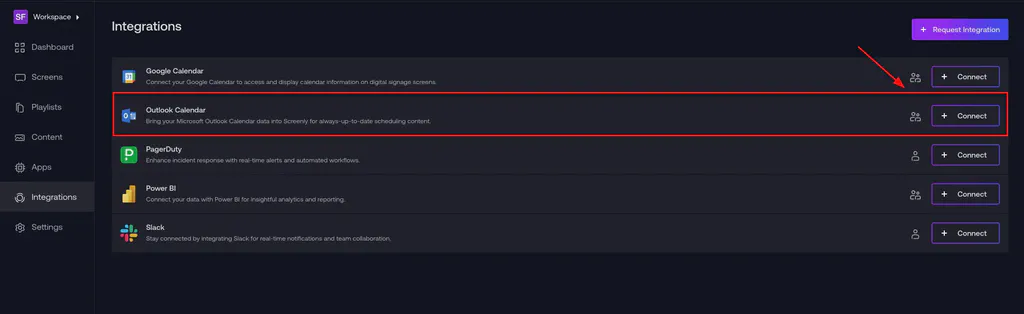
You will be prompted to confirm the connection to a Microsoft Outlook account. Click the “Connect” button and You will be redirected to a Microsoft OAuth consent screen.
Select the Outlook account you want to connect to Screenly. Follow the prompts to grant Screenly access to your Outlook Calendar data.

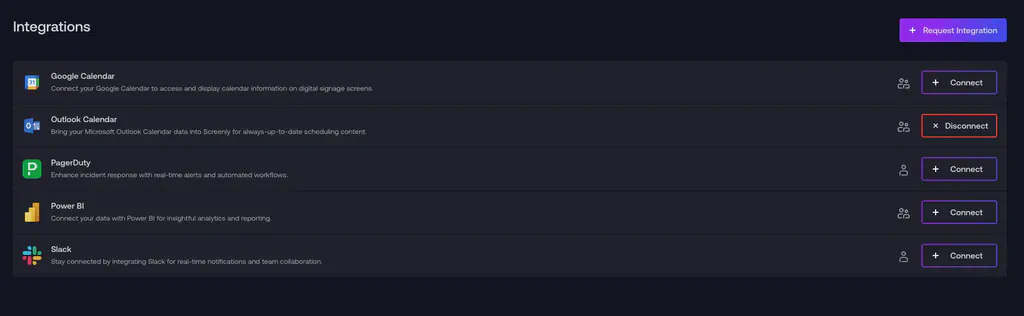
After successful authentication, you’ll return to the Integrations page where your Outlook Calendar connection will now show as active.
Create Your Outlook Calendar App
Open the Screenly Apps page and select Outlook Calendar App to create a new instance.

After selecting the app type, simply give your app a name and choose which Outlook calendar you want to display.

It’s that simple, no additional setup required once your Microsoft Outlook account is connected. Select your calendar, name your app, and you’re ready to go.